WEEK 1 » TIPS & TRICKS
Introduction • Curriculum–Specific, Authentic, Technology–Specific, and Kid–Specific Learning

1. Always Use Word Processing Software To Protect Your Work
To prevent losing your work due to computer or software crashes, power failures, etc., type assignments or any document in a word processor. Throughout this course you will be asked to complete a reflection assignment and submit it in the body of an e–mail message. Instead of typing directly in the e–mail message, type your assignment in a word processor, save your work often, and use spell checker. When you have completed your reflection, simply highlight the text and then copy and paste the text into the body of an e–mail message.
2. Quick Keys
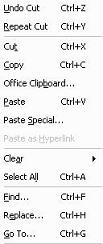
If you have never used keyboard quick keys, you might want to try using them. Highlight the text and then press Ctrl+C (on a Macintosh, press COMMAND+C). This action copies the highlighted text into a Windows memory location called the Clipboard. Create a new e–mail message, click inside the body of the e–mail message, and then press Ctrl+V (on a Macintosh, press COMMAND+V). Using these keyboard quick keys also works great for copying and pasting World Wide Web and e–mail addresses. There are dozens of other quick keys, for example Ctrl+S will save your file and Ctrl+P will print your file. To learn other quick keys when using Office 2003 or earlier, access any drop down menu and look to the right of the various commands. For example, shown to the right is Word's 2003 Edit Menu.
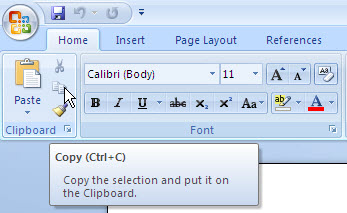
If you are using Office 2007, simply place your mouse pointer over any icon and a description of the action performed by the icon and the quick key, if applicable, will display. For, example, shown below is Word 2007 with the mouse pointer over the copy icon.
If you have completed this page, continue to the Assignment page.